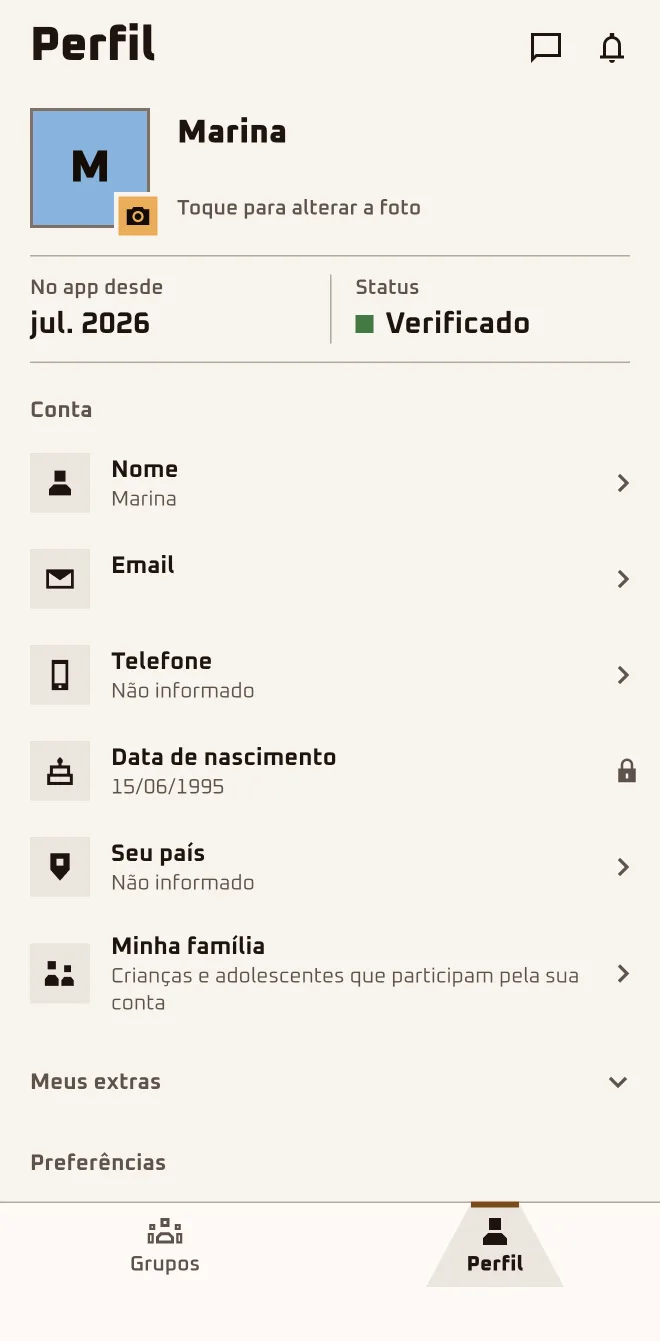
Marina left on only the notifications that matter and set her country so the currency comes out right. She didn't touch her email: it's her Google one and it doesn't change. All of it lives under the Profile tab, the last one on the bar.
- Screen 1
 App screen 2.6.4 · pt-BR
 - Screen 2
 App screen 2.6.4 · pt-BR
 - Screen 3
 App screen 2.6.4 · pt-BR
I'm hereProfile›Account›Name · Email · Phone · Your country · My family
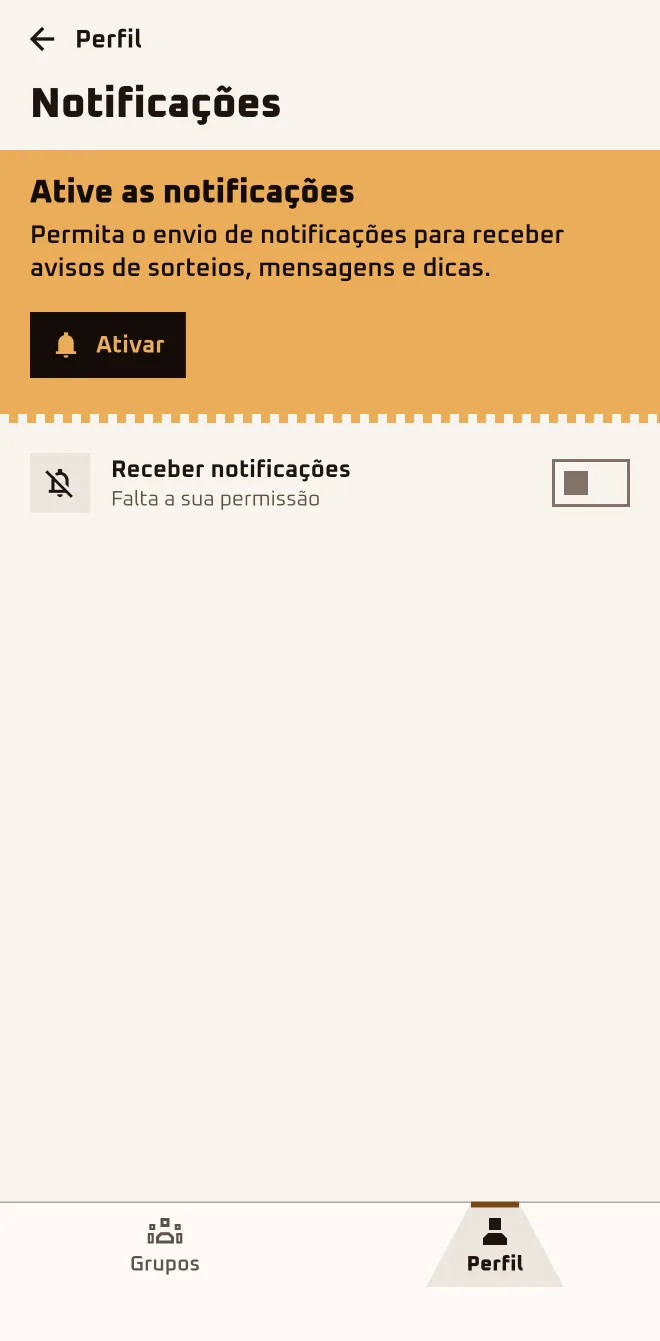
I'm hereProfile›Preferences›Notifications · Sound & vibration · Language · Appearance · Blocked people
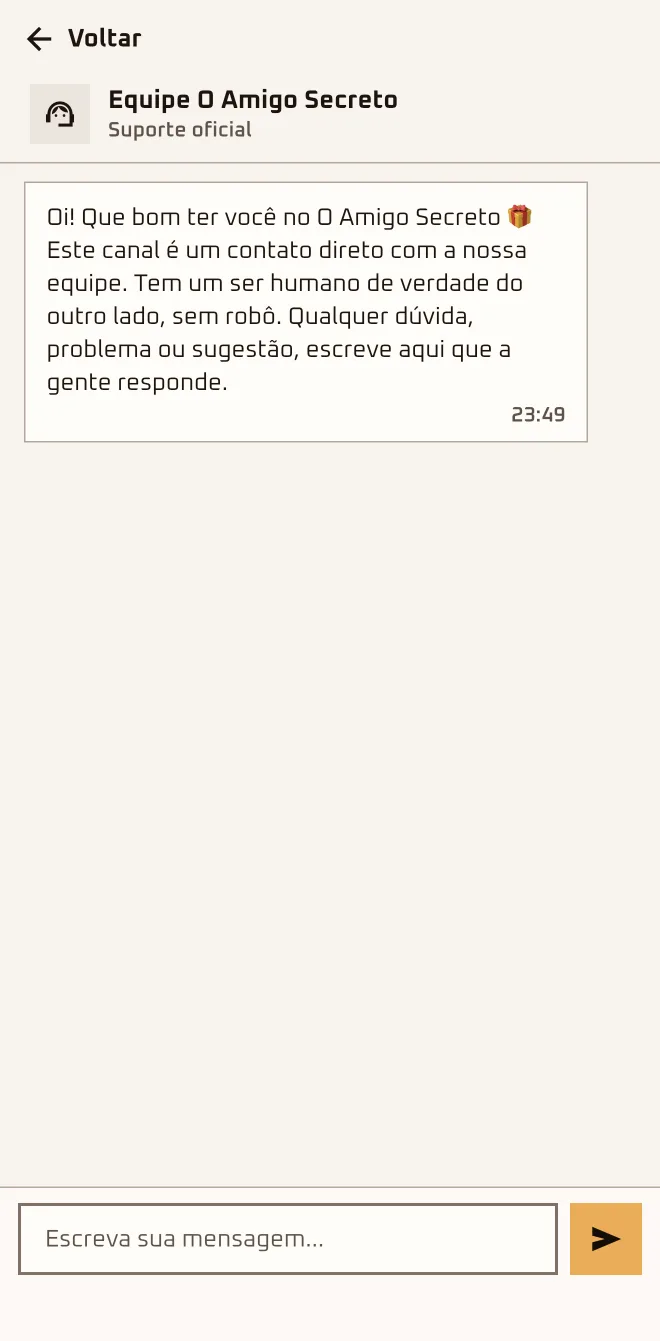
I'm hereProfile›Help›Talk to us · Download my data · Delete Account
In the browserplay.oamigosecreto.app›Profile›Emails · Logout
Step by step
- 1
Turn on only the notifications that matter
In Preferences › "Notifications", "Receive notifications" is the master switch; each kind has its own. If the system blocked it, tap "Open Settings".
- 2
Set language, appearance and country
In "Language" you pick a language; in "Appearance", "Light" or "Dark". In Account › "Your country", the country sets the group's suggested currency.
- 3
Register your family
Under "My family" › "Add someone", only the "Nickname" goes in, up to 5 per account. In the group, before the draw, tap "Add a family member".
- 4
Sign out without leaving the group
"Sign out" only ends your session. Leaving a group lives under "More in this group": "Leave group" before the draw, "Remove from my list" after it.
- 5
Delete the account, if it comes to that
Help › "Delete Account" erases everything. If you own a group with another approved person, first tap "Hand the group over to {name}" in "People".
Notifications the app sends: draw, vote, reveal, requests and approvals in the group, the list of who you got, hints, team messages and news. A message in the anonymous chat sends no notification: Chats just flags it.
Questions about this chapter
I'm not getting any notifications.
A message in the anonymous chat sends no notification: it gets flagged on the "Chats" bubble. In the app, under Profile › Preferences › "Notifications", "Receive notifications" has to be on and not showing "Waiting for your permission". If you see "Notifications blocked in system settings", tap "Open Settings".
Which notifications does the app send?
The draw, the vote, the reveal, requests and approvals in the group, the list of who you got, hints, the day's door, the recap and team messages. Nudges about the group sit behind the "Group activity" switch; news, behind "Promos and news". Turn off what you don't want under Profile › Preferences › "Notifications".
I want to change my account email.
Today, sign-in is Google or Apple only, and the account email is the one you signed in with: under Profile › Account, the "Email" field has a padlock and can't be changed. Changing your Google or Apple email doesn't change the one in the app. If you still need to, write to the team under Profile › Help › "Talk to us".
How do I block someone? Do they find out?
You can block in "People" (their menu › "Block") or by long-pressing a message in the anonymous chat, without knowing who it is. The person isn't notified. Their chat and Surprise Chest messages go quiet; hints and shared items keep showing up. To undo it: Profile › Preferences › "Blocked people" › "Unblock".
How do I reach the team?
In the app, Profile › Help › "Talk to us" is a chat with real people; the reply lands in the same conversation. Before the first reply you can send up to 3 messages in a row; after that, one at a time. A link, a Pix key or an @ before that reply may get flagged as spam. Give the group's name and say what happened.
I got a new phone. Do I lose my groups?
No: your groups stay in your account. On the new phone, install the app and sign in with the same Google or Apple account. If the old account was email and password, sign in with Google or Apple on that same email: the app merges the two on its own. All the new phone asks again is notification permission; just say yes.
How do I download my data?
Under Profile › Help, tap "Download my data": the app generates a JSON copy and opens the share sheet so you can save it wherever you like. Downloading deletes nothing; deleting the account is a different button, "Delete Account", in the same section. The copy is good for 24 hours; once that's past, generate another.